USER GUIDE
Tiếng ViệtHow to use Người Nhà
One idea per step, with screenshots of the real app. Người Nhà runs on iPhone, Android (in testing) and the web — your data syncs between devices.
1.Getting started
Install the app or open the web version, then sign in. You can look around first without an account.
iPhone, iPad
- Open Người Nhà on the App Store (or search “Người Nhà” in the App Store).
- Tap Get, then open the app.
Android — closed testing on Google Play
- First join the testers group: nguoinha-testers → Join group.
- Then open the testing link → Become a tester → install from Google Play.
If Google says the app is not available, you haven't joined the group yet. Join it, then open the link again.
Computer or any other device
Nothing to install: open app.nguoinha.com in a browser and sign in with the same account.
Signing in
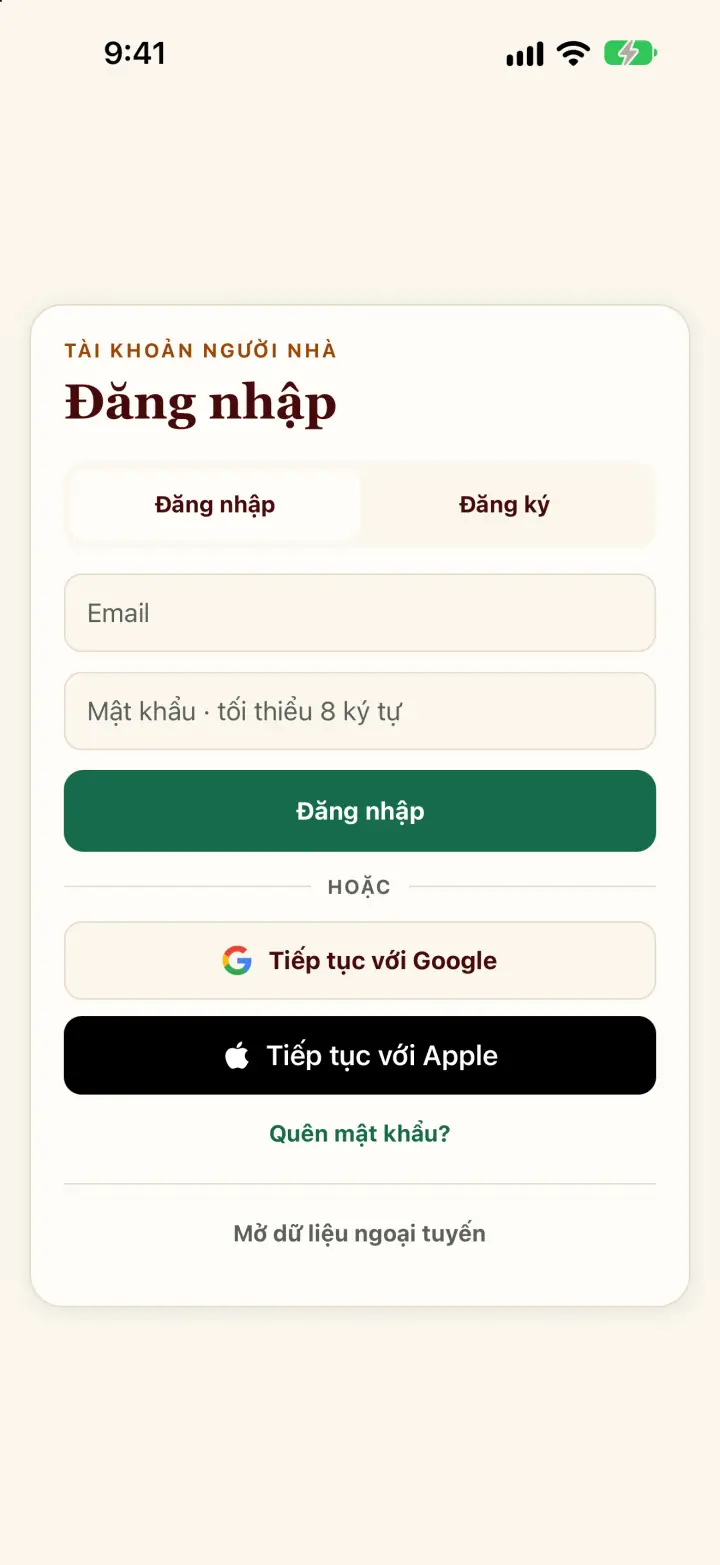
- Continue with Google or Continue with Apple — the quickest, no password to remember.
- Or use Email and a password (at least 8 characters). The first time, choose Create account.
- Forgot it? Tap Forgot password? under the sign-in button.
Try it without an account
- In the app: tap Open offline data at the bottom of the sign-in screen to open a small sample tree.
- On a computer: open nguoinha.com/demo — a sample family tree to click around freely.
Invited to a family?
- On the “Draw your family tree” screen, tap Join (the “Invited to a family?” line).
- Paste the invite link or meeting code, or tap Scan QR code → Join.
Each family should share one tree. If a relative already started it, join theirs instead of making a new one.
2.Draw the tree and add people
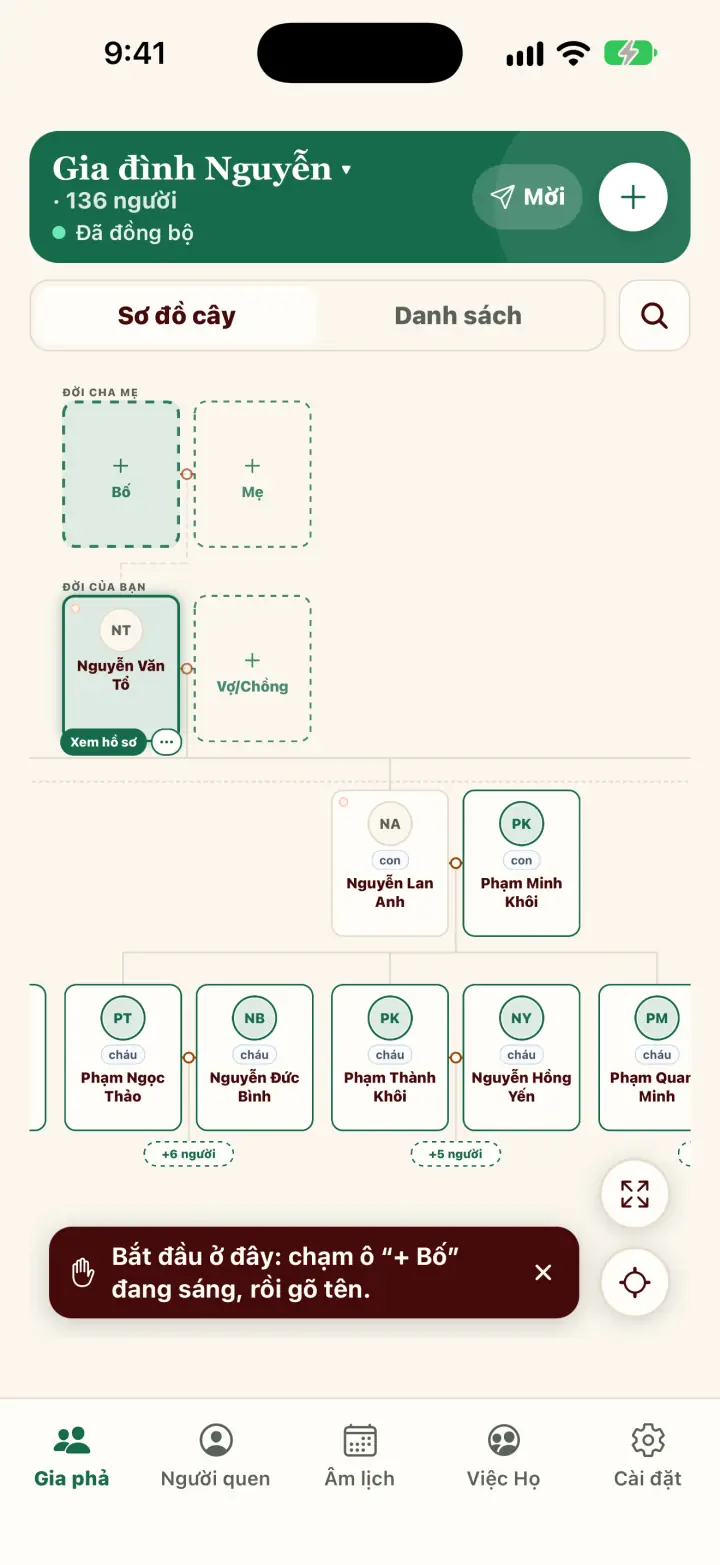
The tree starts with you. Around you are blank boxes marked “+” — tap one to add a person in that spot.
Add a relative
- Open the Family tab. The first time, tap Start.
- Tap a blank box: + Father, + Mother, + Spouse, + Child or + Sibling.
- Type the full name, choose Male or Female, tap Add.
- Tap someone else on the tree — the blank boxes move around that person.
What the app does for you
- Family name filled in: for a child, sibling or father, the family name (họ) of the father's line is already typed. For a mother or spouse you type it yourself.
- Quick add: a name is enough. To add a birth year, death date and more, tap More details.
- Same name: if the person may already be on the tree, the app asks — choose Use this person or Create anyway.
- Deleted by mistake: tap Undo on the message that appears (for about 5 seconds).
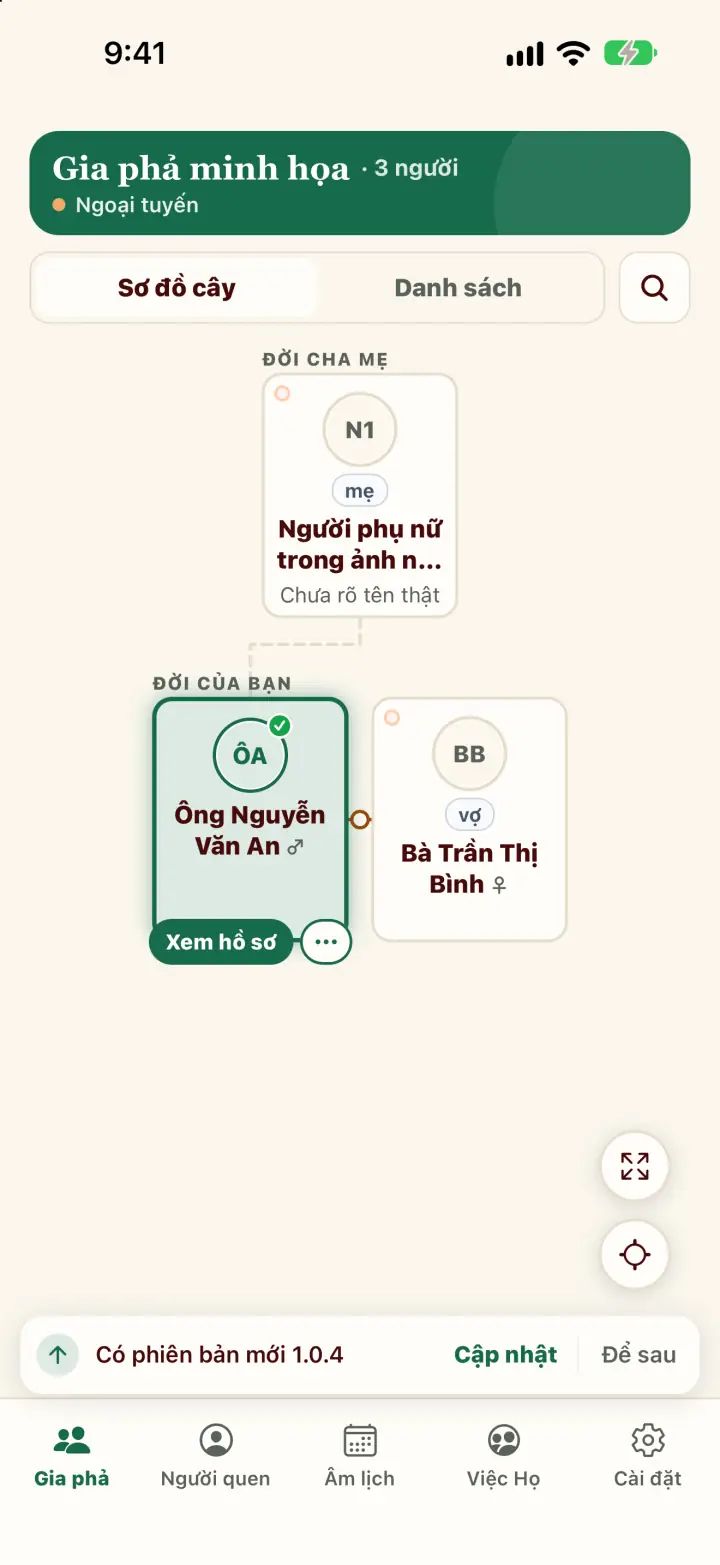
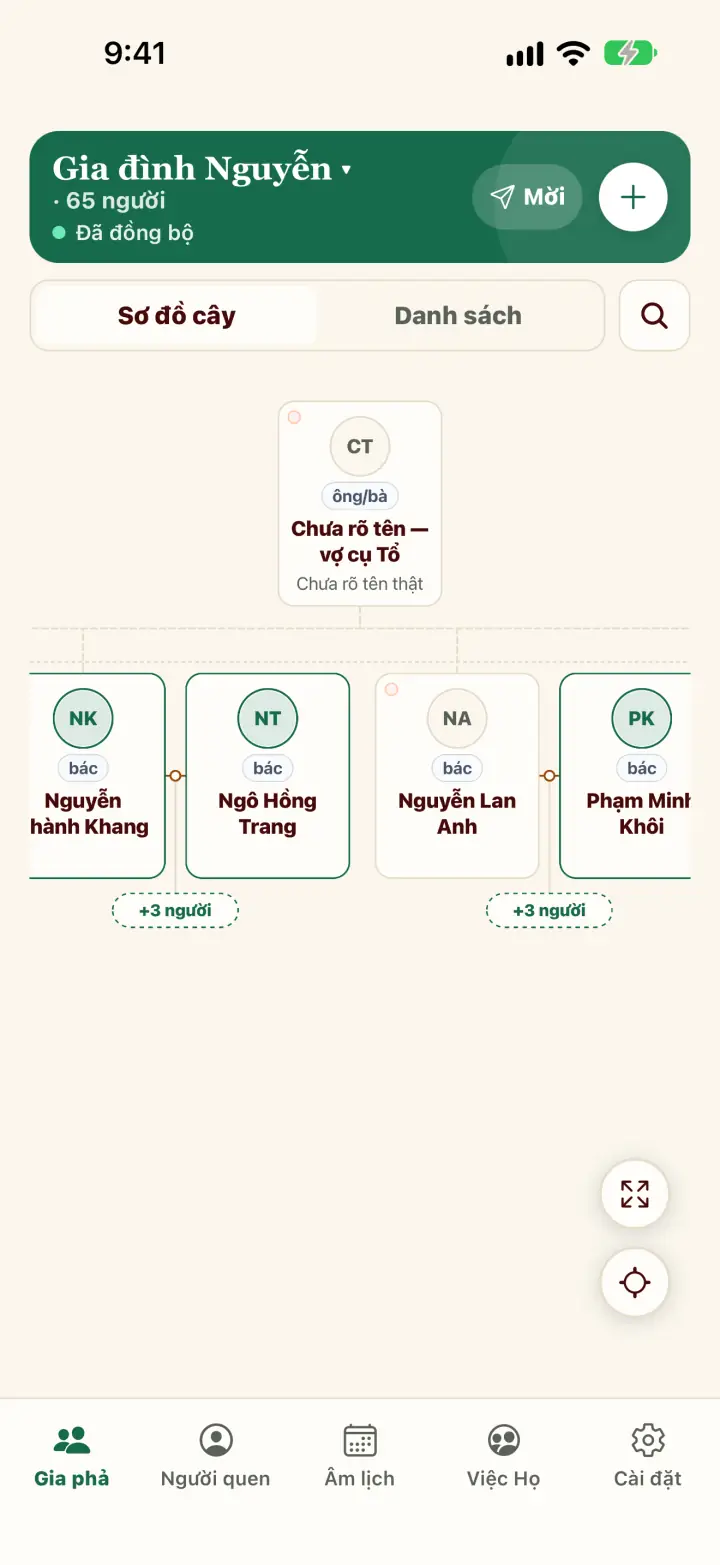
- Large branches fold into a +N more box — tap it to open the branch.
Moving around and finding people
- Drag with one finger to move, pinch with two to zoom.
- Tap the magnifier to search by name or dharma name.
- Switch between Tree and List at the top. The web also has Fan and Binary charts.
- Press and hold a card to Rename, Change relationship or Delete from tree.
3.A person's profile
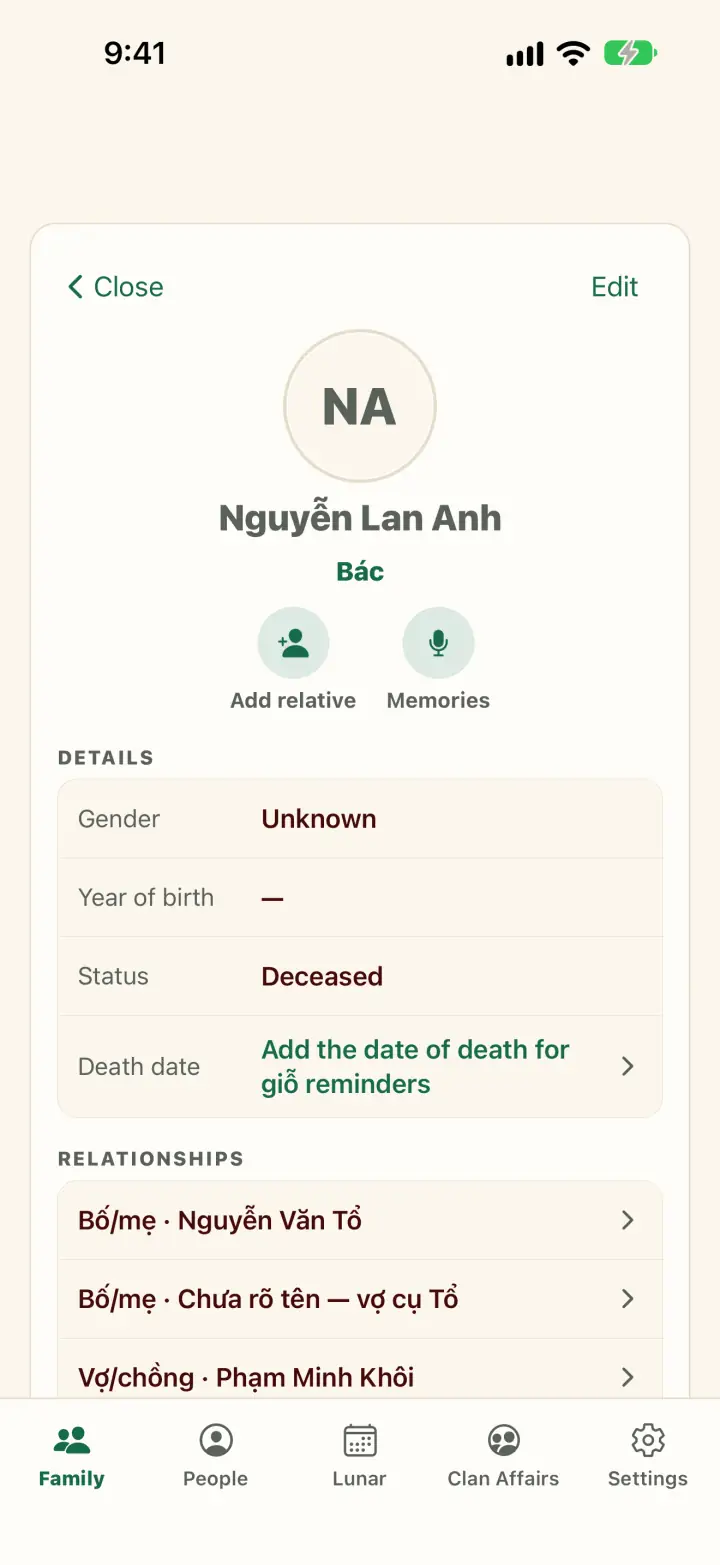
Tap a person on the tree, then View profile. It looks like a contact card on your phone.
- Under the name is how this person is related to you (for example “Bác”). For in-laws, a Call them line adds how to address them when you meet.
- Quick buttons: Add relative, Memories, and Invite to app for a living relative who has no account yet.
Edit details
- Tap Edit at the top.
- Change the name, gender, year of birth. For someone who has passed away, turn on Deceased.
- Tap Done to save.
Date of death (for giỗ reminders)
- In the profile, tap the row for adding a date of death.
- Choose Lunar (or Solar), then the day and month. There are Leap month and Only the year is known options.
- Tap Save date of death. The profile then says “Giỗ reminder every year”.
Photo and memories
- Tap the photo → Change avatar photo.
- Tap Memories → Add memory to write down a story, or record a grandparent telling it.
4.Automatic kinship titles
Vietnamese has a word for every relative — ông nội, cô, chú, dượng, chị dâu… Người Nhà works out what you call each person.
Tell the app who you are
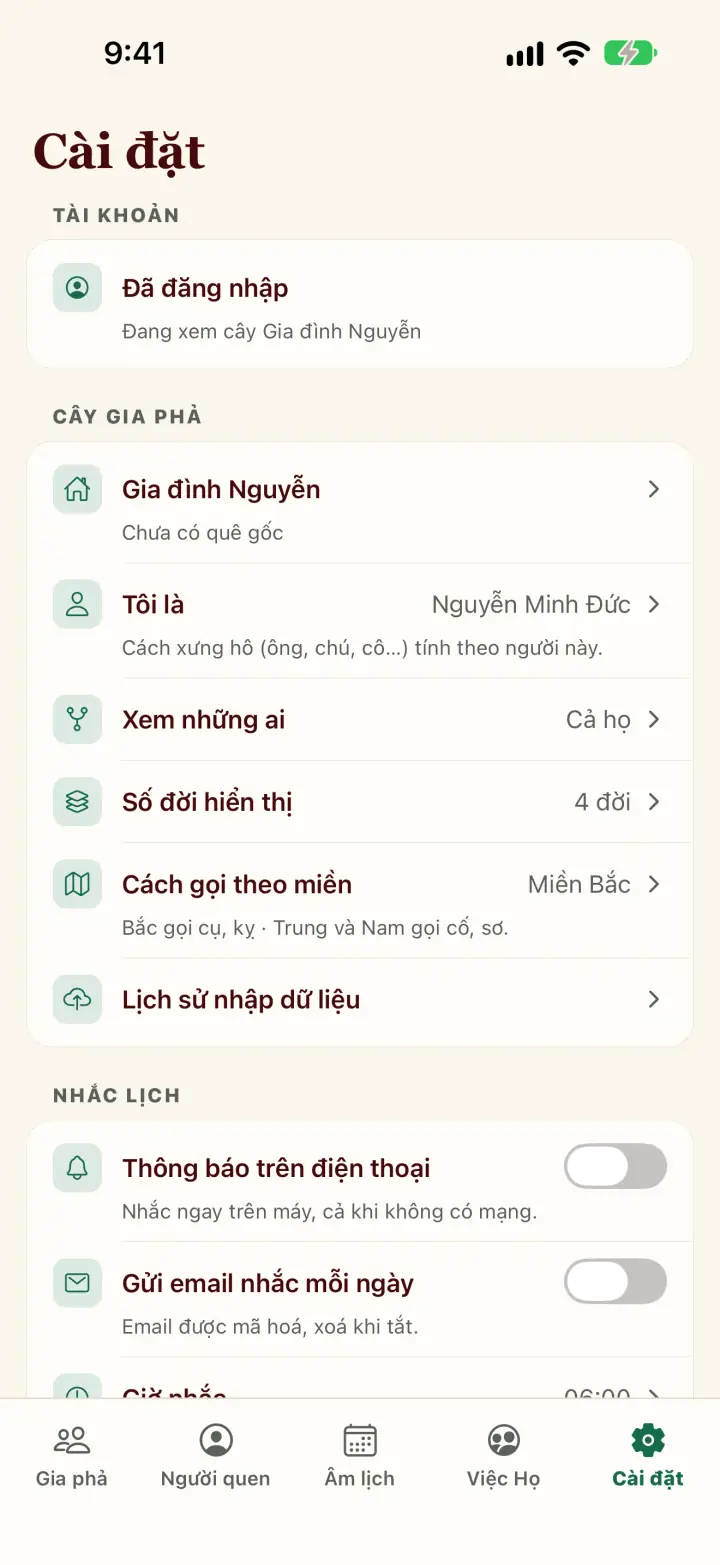
- Go to Settings → I am.
- Pick your own name from the list.
- Back on the tree, every card shows what you call that person.
Fill in each person's gender (Male/Female) so the titles come out right.
In-laws
- Relationships by marriage are understood too: em vợ, anh rể, chị dâu, em dâu, con dâu, con rể, đồng hao (in the South: cột chèo), chị em dâu…
- People who married into the family have a dashed ring around their photo on the card.
- In their profile, Call them tells you how to address them when you meet.
Adjusting
- Settings → Terms by region: choose Northern, Central or Southern usage.
- To see how two other people are related: press and hold a card → Compare with… → tap the second person (in the app).
5.Death anniversaries and the lunar calendar
Enter a date of death once and the app reminds you of the giỗ (death anniversary) every year. The Lunar tab shows today's lunar date and good days and hours.
Turn on giỗ reminders
- Enter the date of death in the person's profile (see the Profile section).
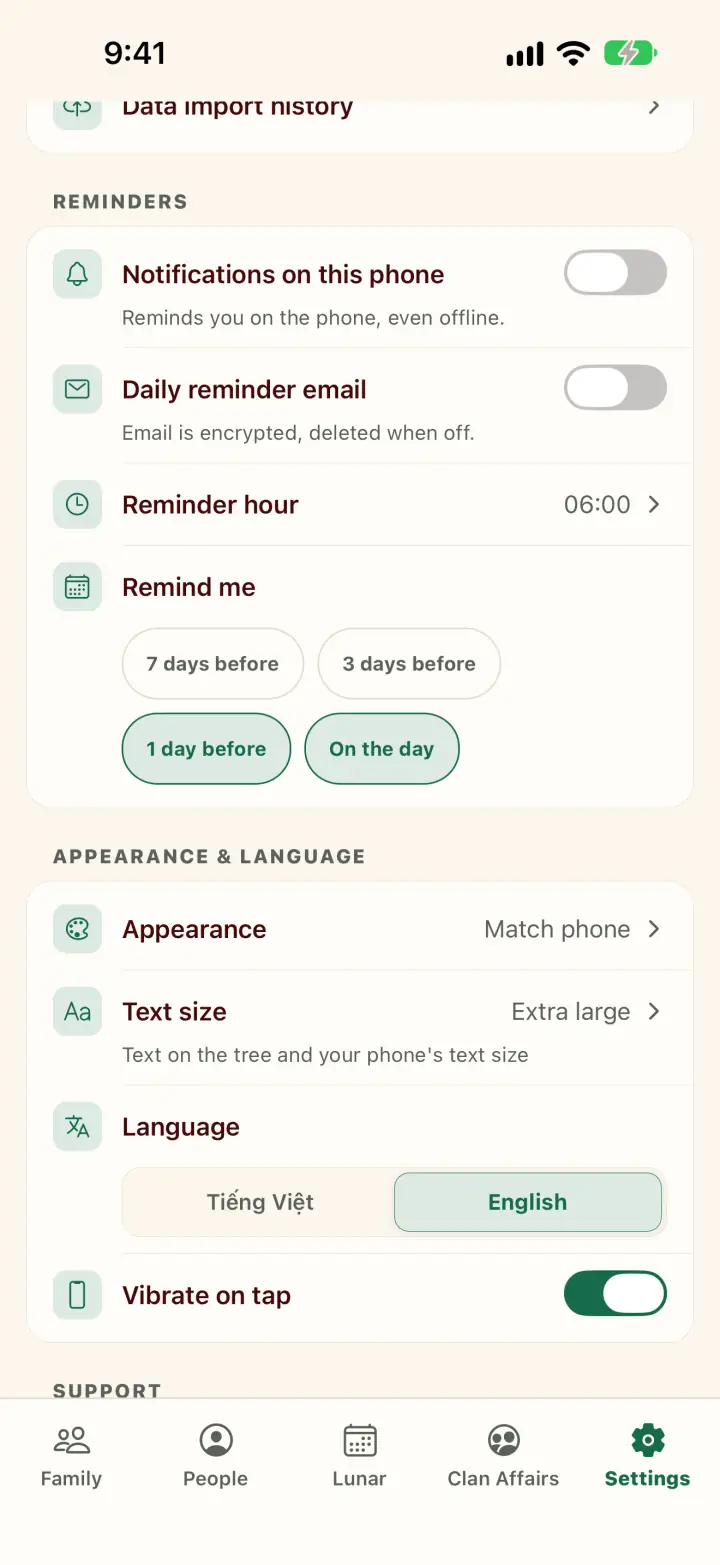
- Go to Settings → Reminders → turn on Notifications on this phone.
- Under Remind me, choose 7 days, 3 days, 1 day before or On the day.
To get them by email as well, turn on Daily reminder email.
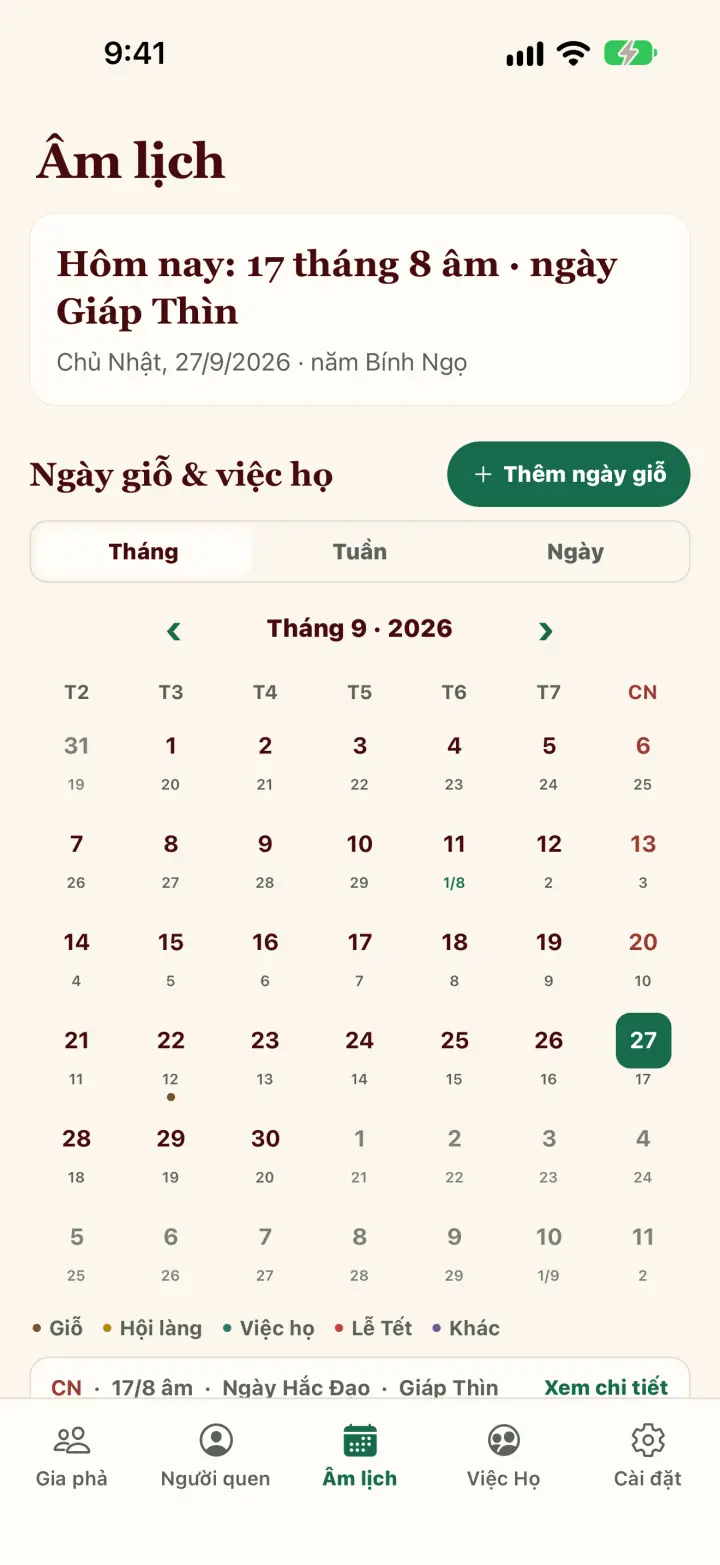
The Lunar tab
- Today's lunar date, auspicious day, auspicious hours and solar term.
- Memorials & clan events: view by Month, Week or Day; tap Add memorial for a giỗ, village festival or clan event.
- Tools: convert solar ↔ lunar dates, find a good day for clan affairs.
- The Tử Vi chart card draws a horoscope chart for a relative.
- The Element & compatibility card: look up a mệnh, or compare the ages of a couple or business partners.
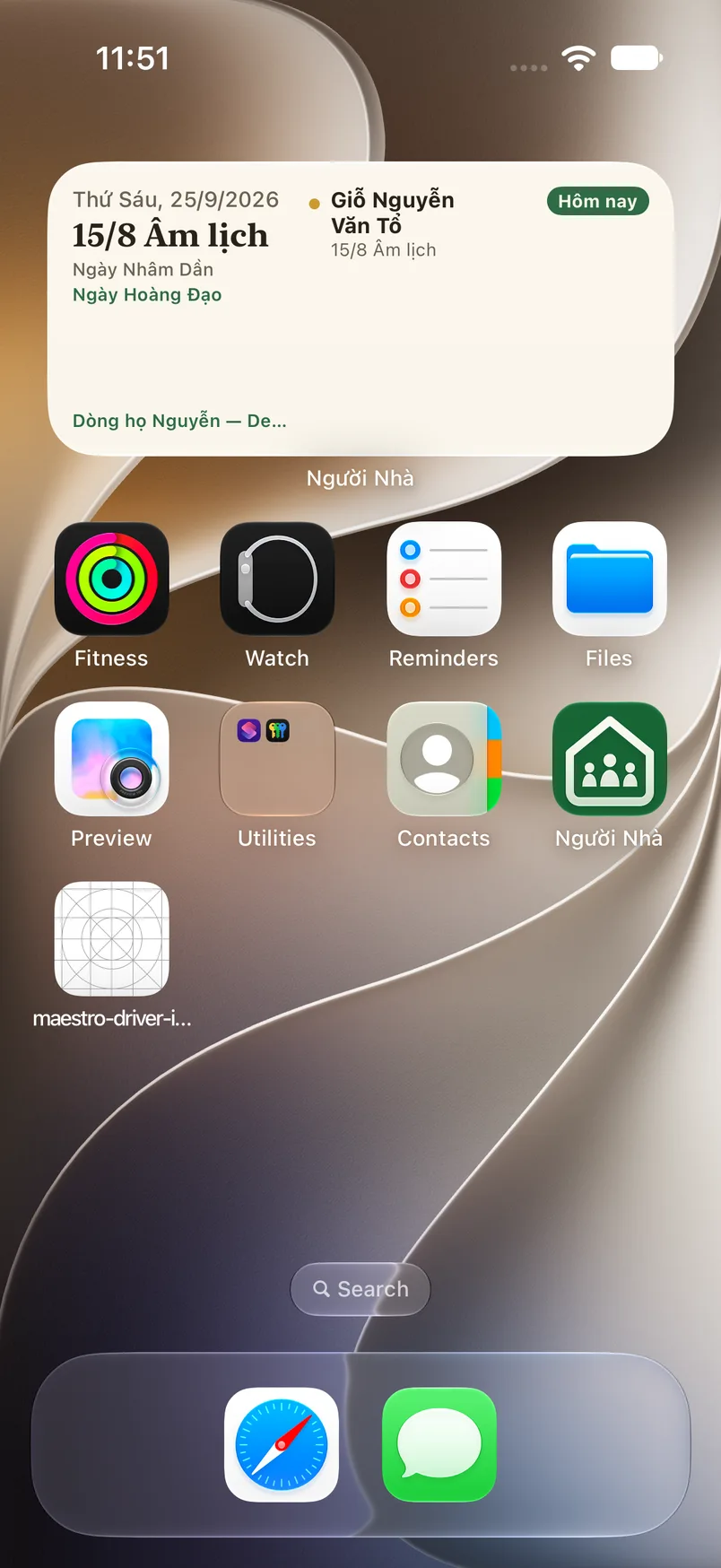
iPhone home-screen widget
- Open Người Nhà once so the widget has data.
- Press and hold the home screen → Edit → Add Widget.
- Find “Người Nhà”, pick small or medium → Add Widget. There is a small lock-screen version too.
The widget shows today's lunar date and giỗ and clan events in the next 30 days (in Vietnamese). Tap it to open the Lunar tab.
6.Inviting relatives
A tree is more fun when the whole family looks at it and adds to it. There are three ways to invite.
Send a general invite link
- At the top of the Family tab, tap Invite.
- Pick Zalo, Messenger, Messages… to send the link.
Invite one particular person
- Open that person's profile → tap Invite to app.
- Send them the link. It works once and is tied to that person on the tree.
When they join, the tree manager confirms it once — then the tree recognises them and shows titles from their point of view.
The whole family at a gathering
- Go to Clan Affairs → Invite the whole clan → Create an invite code.
- Choose what joiners may do: Member (view and add information) or Guest (view only).
- Everyone scans the QR code or types the code. It expires after 24 hours; tap Stop code when you're done.
What does the invited person do?
- Open the invite link (or tap Join in the app and paste the link / scan the code).
- Sign in or create an account.
- Pick who they are in the family and send the link request. The manager taps Approve under Pending.
7.Clan Affairs
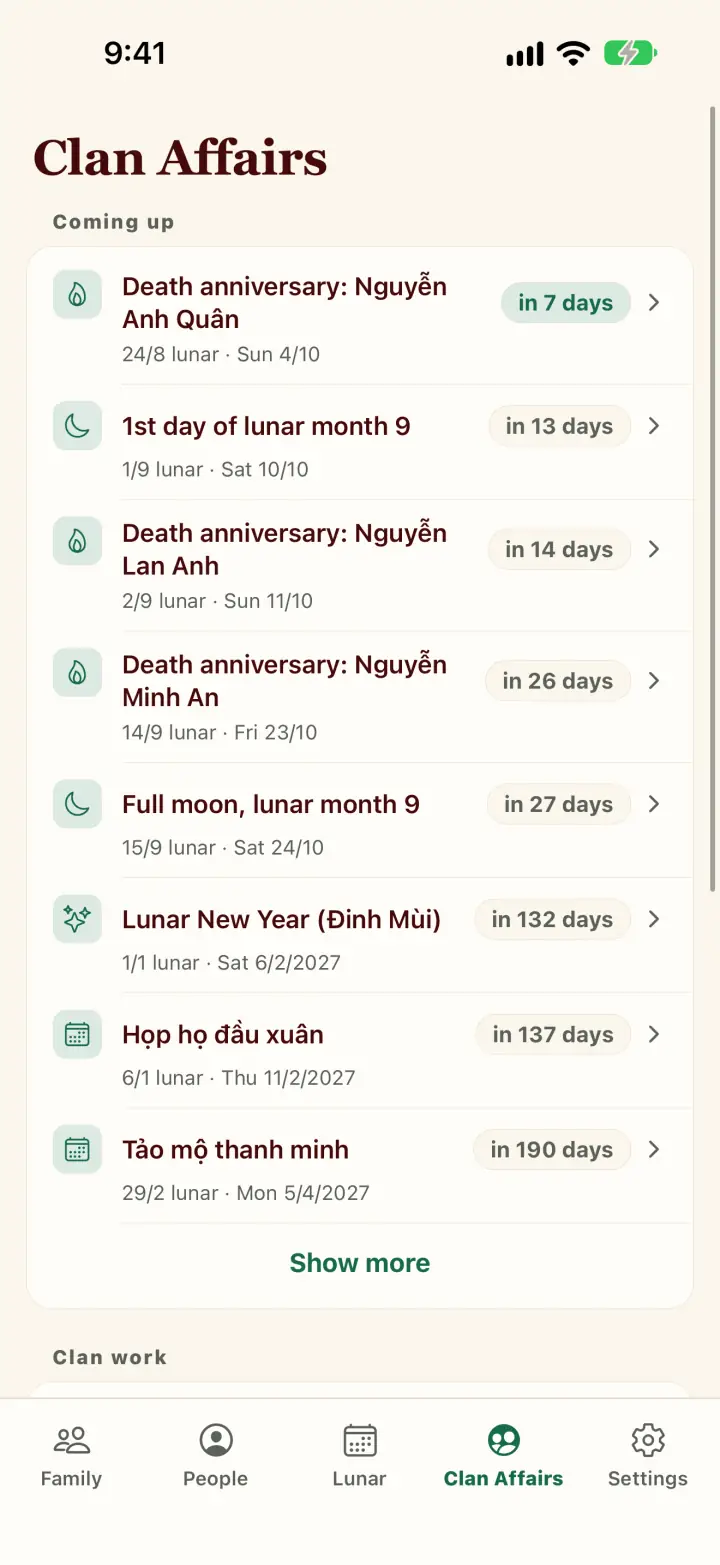
The Clan Affairs tab opens on Coming up: the days the family needs to remember, worked out on the lunar calendar. You need to be signed in.
Coming up
- Each giỗ (memorial day, from the lunar date of passing on the person's profile), the full moon and first day of each lunar month, Thanh minh, Tết, longevity celebrations and clan events from the calendar.
- Each row shows the lunar and solar date and how many days are left. Tap Show more to see the whole year.
- No giỗ yet? Open a grandparent's profile and add the date of death — the app works out the giỗ every year.
Organise a giỗ and invite everyone on Zalo
- Tap a giỗ under Coming up → Organise the giỗ (or Organise the celebration, Organise a grave visit).
- Fill in the time, address, host and what to bring → Save and get the invite link.
- Tap Send invitation to share the link on Zalo, Messenger or Messages.
- Whoever opens the link can reply coming / maybe / not coming and pick what they'll bring — no app to install, no account needed.
The event you created appears under Organised events: see who replied and who brings what, add replies taken by phone, or tap Remind again before the day.
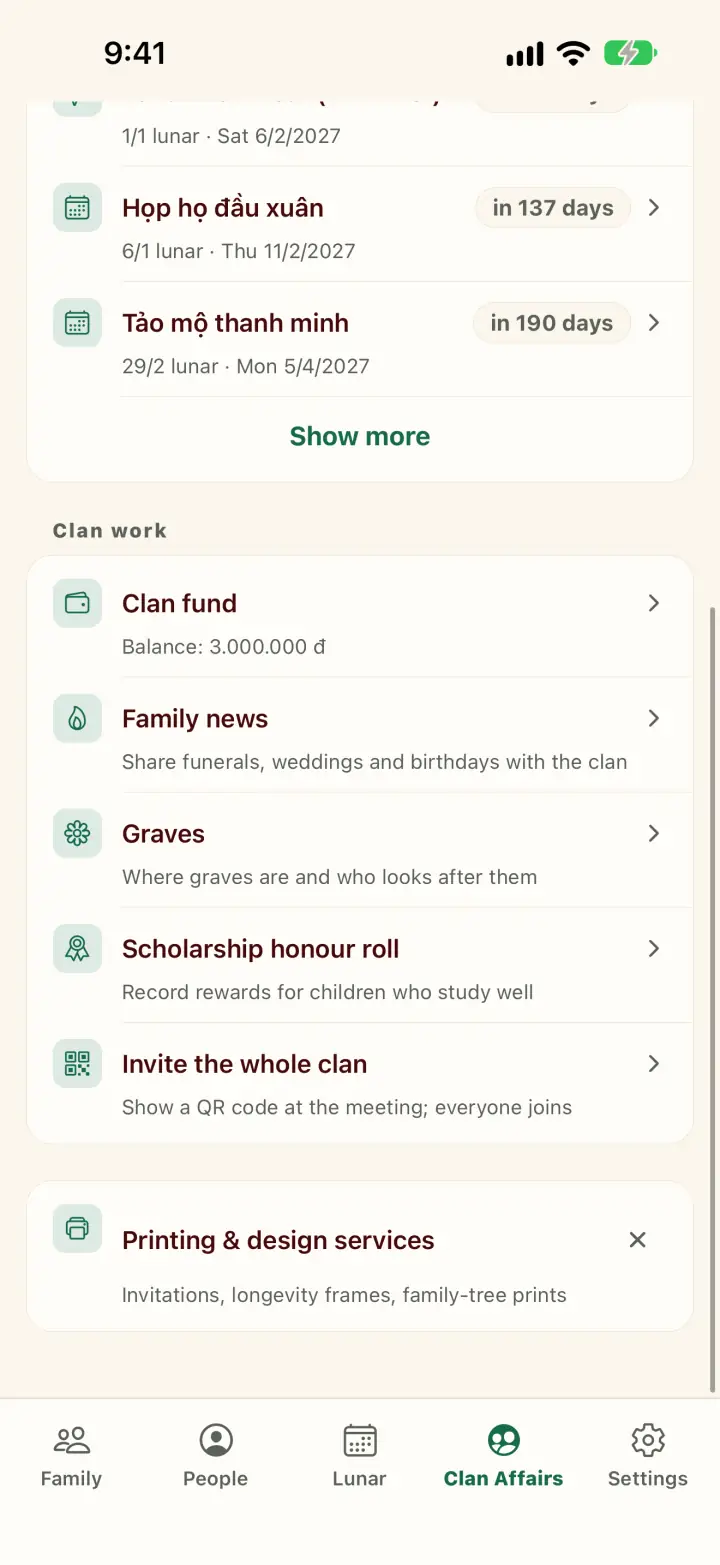
Clan work
- Clan fund: income and spending, donations; the current balance is always shown.
- Family news: announce funerals, longevity celebrations and weddings to everyone.
- Graves: where each grave is and who looks after it.
- Scholarship honour roll: recognising children's school achievements year by year.
- Invite the whole clan: a QR code for a family gathering, and approving who joins.
Printing & design services
At the bottom of Clan Affairs, Printing & design services lets you order invitations, longevity frames or a printed family tree. Enter the quantity, the date you need it and a phone number → Send print request, and the print shop will get back to you.
The clan agreements now live in Settings in the app and Clan administration on the web. Element & compatibility has moved to the Lunar tab.
8.People I know
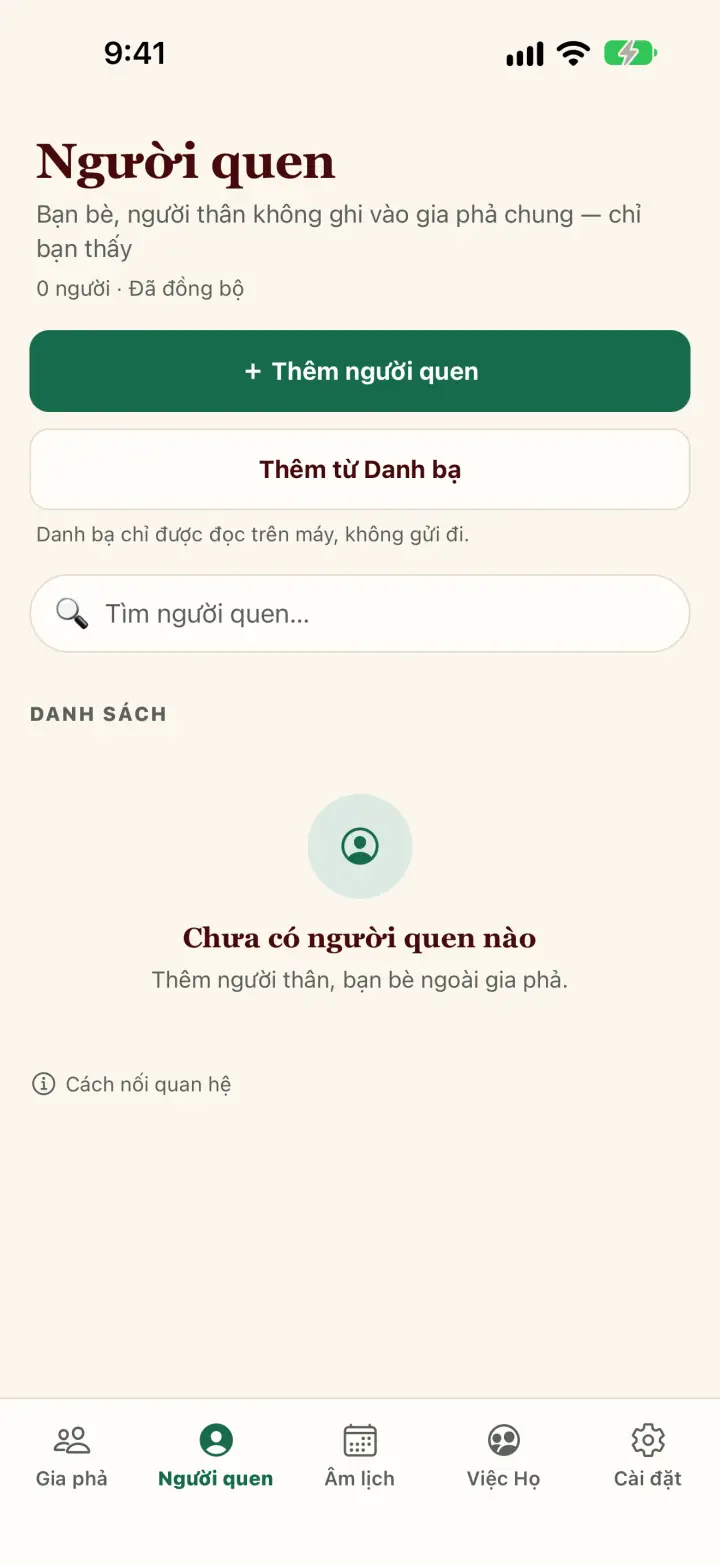
The People tab is your private address book: friends, neighbours, distant relatives who don't belong on the shared tree. Only you can see it.
- Open the People tab.
- Tap Add a person, or Add from Contacts to pick from your phone's contacts.
Your contacts are read on your phone only and are not uploaded anywhere.
9.Text size and appearance
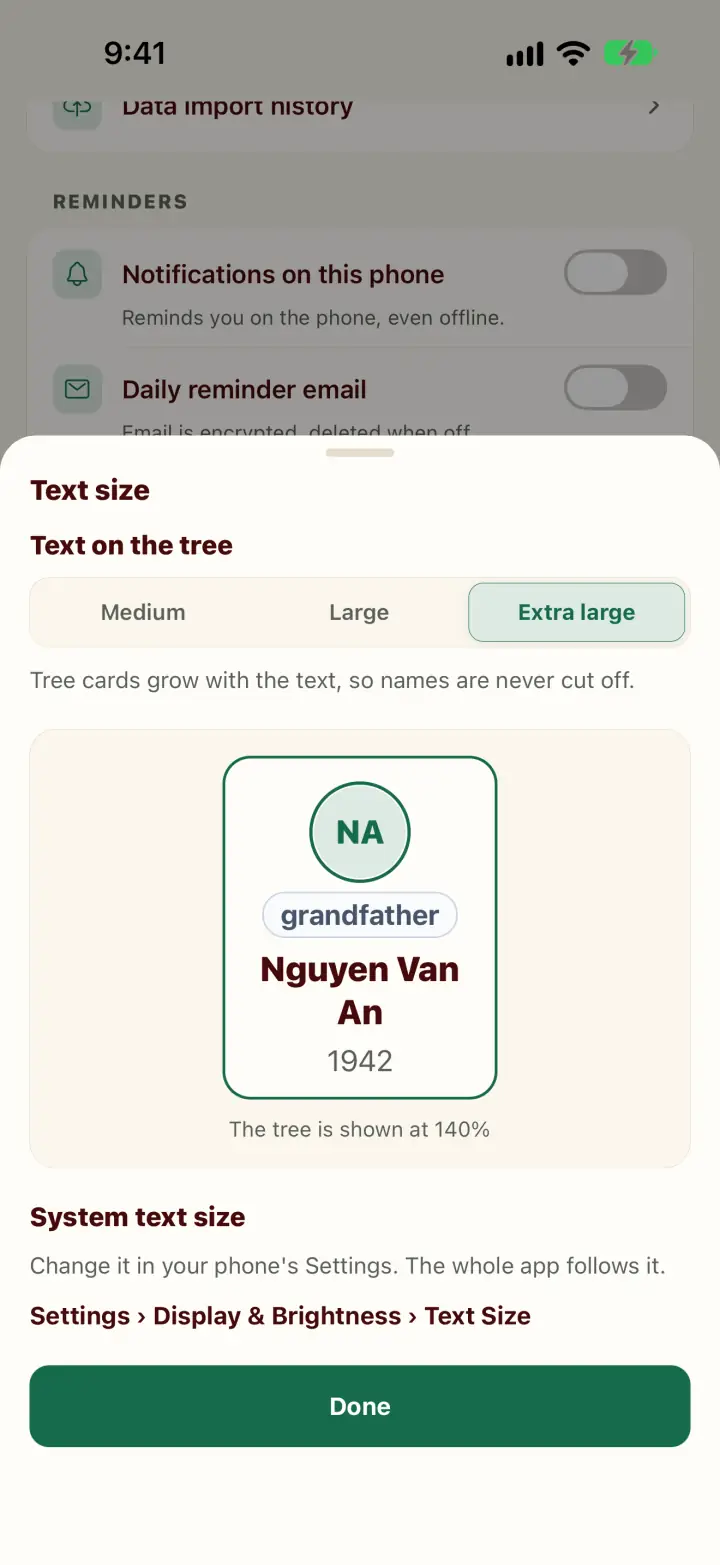
Text too small? You can make the text on the tree bigger, or the whole app.
On the phone
- Go to Settings → Text size.
- Under Text on the tree, choose Medium, Large or Extra large.
- For big text on every screen, raise your phone's text size. On iPhone: Settings → Display & Brightness → Text Size (the app has an Open settings button). Người Nhà follows it.
On the web
Go to Settings → Text size → Medium, Large or Extra large. The whole page grows with the text. This is saved in the current browser only.
Colours and language
- Appearance: Match phone, Sơn Thủy (warm, traditional), Modern or Night (dark, easy on the eyes at night).
- Language: Tiếng Việt or English, in the app's and the web's Settings.
- Vibrate on tap: turn the light vibration on taps on or off.
10.Managing the family
For tree managers. Administration happens on the web: open app.nguoinha.com → More → Clan administration.
Roles
- Head of family — full control of the family.
- Admin — invite, approve, change settings.
- Record keeper — add and edit the tree and events.
- Member — view and suggest.
- Guest — view only.
What you can do there
- Needs your review: join requests and changes waiting for you.
- Invite: send invitations by Email, Link or QR code.
- Members: change roles, Pause access, Remove from family, Hand over Head of the family.
- Family tree: the family's name, home town, invite-only access.
- Family rules and how changes are approved (for example birth or death dates, merging two profiles).
On the phone
- Settings → tap the tree's name to change its name and home town.
- Approve people who joined with a code: Clan Affairs → Invite the whole clan → Pending.
11.No internet, and updates
You can view and edit the tree without internet. When you're back online, the app syncs by itself.
Without internet
- The status line says Offline · using the saved copy — carry on as normal.
- Changes are kept on the phone (Saved on this device · will sync automatically) and sent when you're online.
- Don't sign out while changes are still waiting to sync — the app warns you if they are.
Updating the app
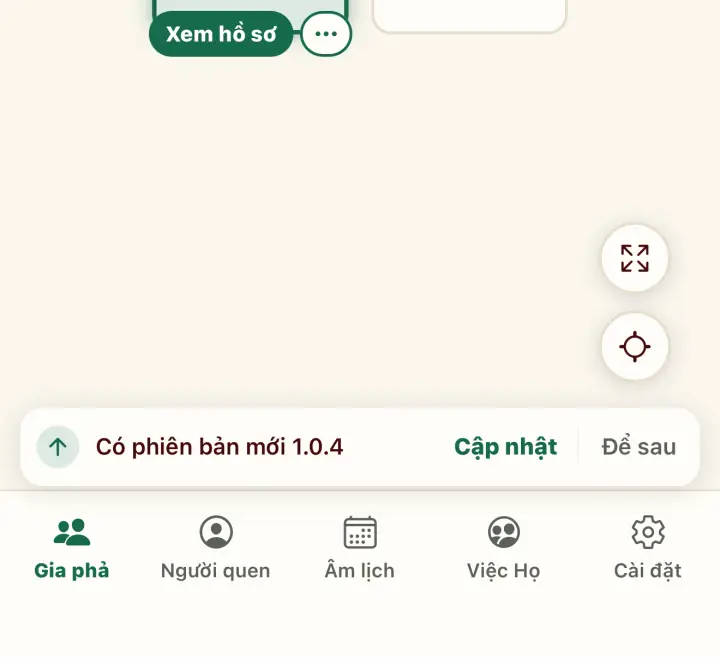
- When there's a new version, New version available appears at the bottom → tap Update (or Later).
- After updating, What's new lists the changes → tap Got it.
- On the web: when you see “A new version of Người Nhà is out”, click Reload.
Frequently asked questions
Someone in my family already made a tree. Should I start a new one?
No. Ask them for the invite link or meeting code and tap Join. That way the whole family shares one tree and nobody types things twice.
I belong to both my father's and my mother's family.
Tap the tree's name at the top of the Family tab to switch trees, or choose + Join another family / + New tree.
I deleted someone by mistake.
Tap Undo on the message that appears. If it's too late, add them again from a blank box.
The titles on the tree look wrong.
Check that Settings → I am is set to you, and that each person's gender is filled in.
How do I see the in-app tips again?
Go to Settings → Replay the guide.
Who can see my tree?
Only people invited to it. Trees are not public on the internet.
Still stuck? See the Support page or email [email protected] — we usually reply within 1–2 working days. Never send passwords or sign-in codes by email.